

Reels &
TikTok Lab.
Learn exactly where to tap, how to record or upload, how to edit, and how to publish short-form content on Instagram, TikTok and Facebook.
Create an
Instagram Reel.
Follow the same six-step flow every time: open, create, choose Reel, record or upload, edit, then share.
Open Instagram
Open the app and make sure you are on the Home feed or your profile.
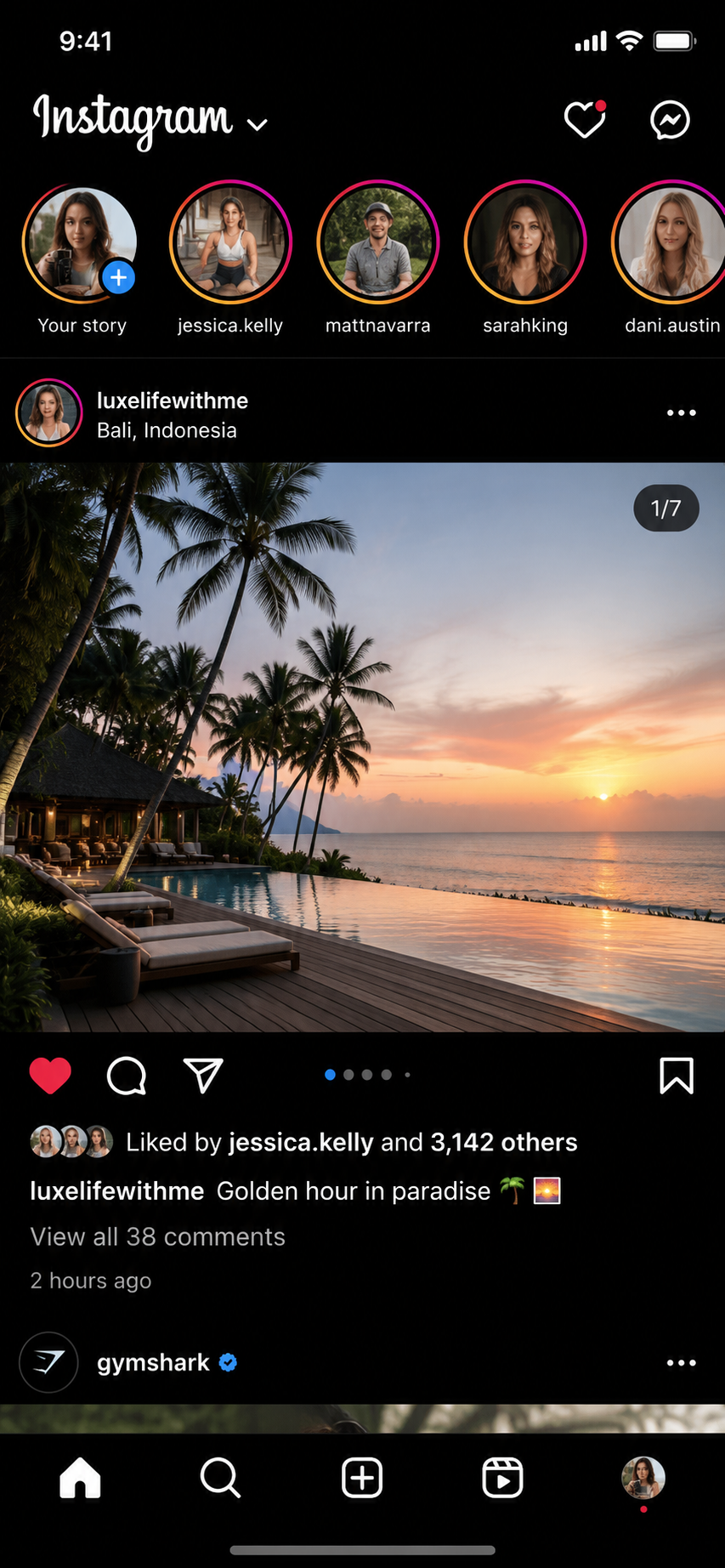
Tap the + Button
Tap the Create button near the top of the screen or from the bottom navigation.
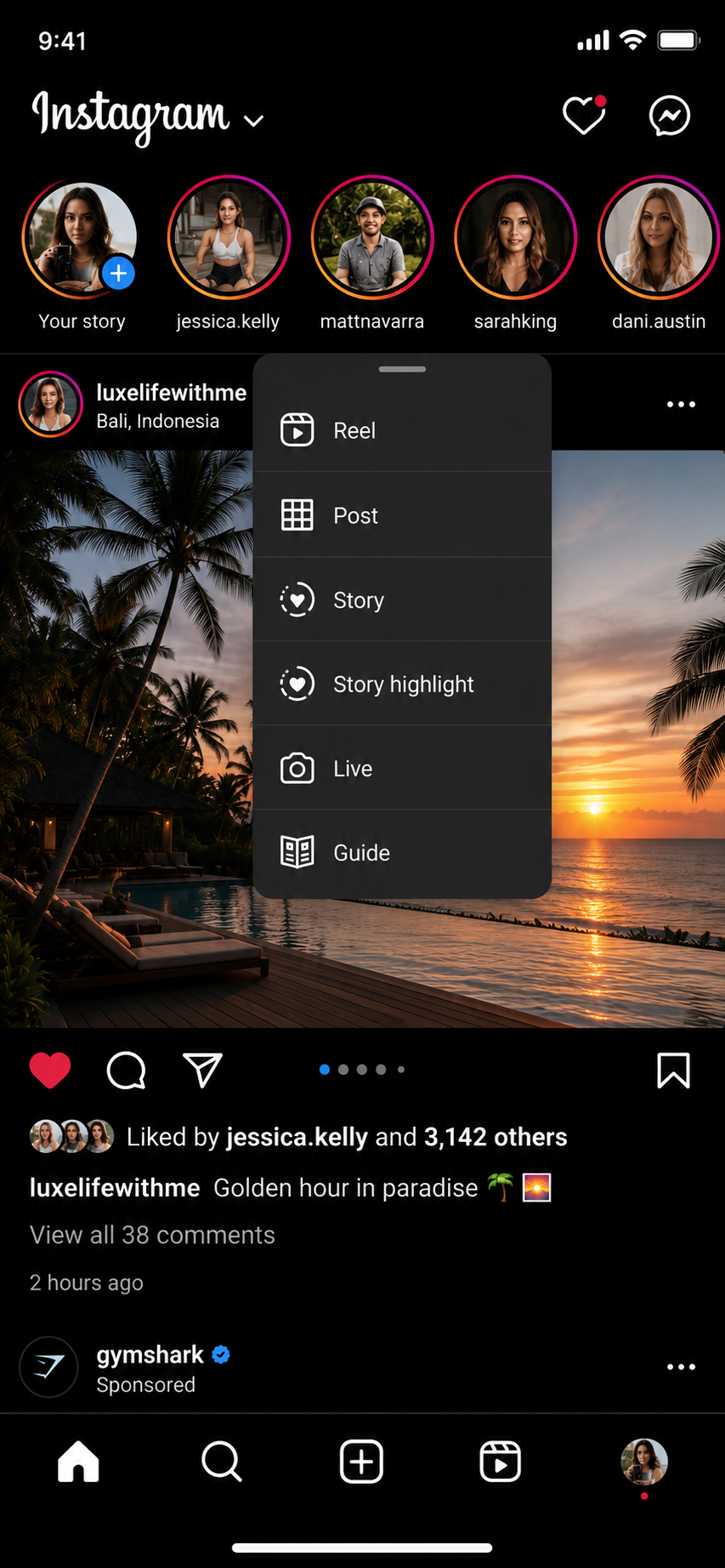
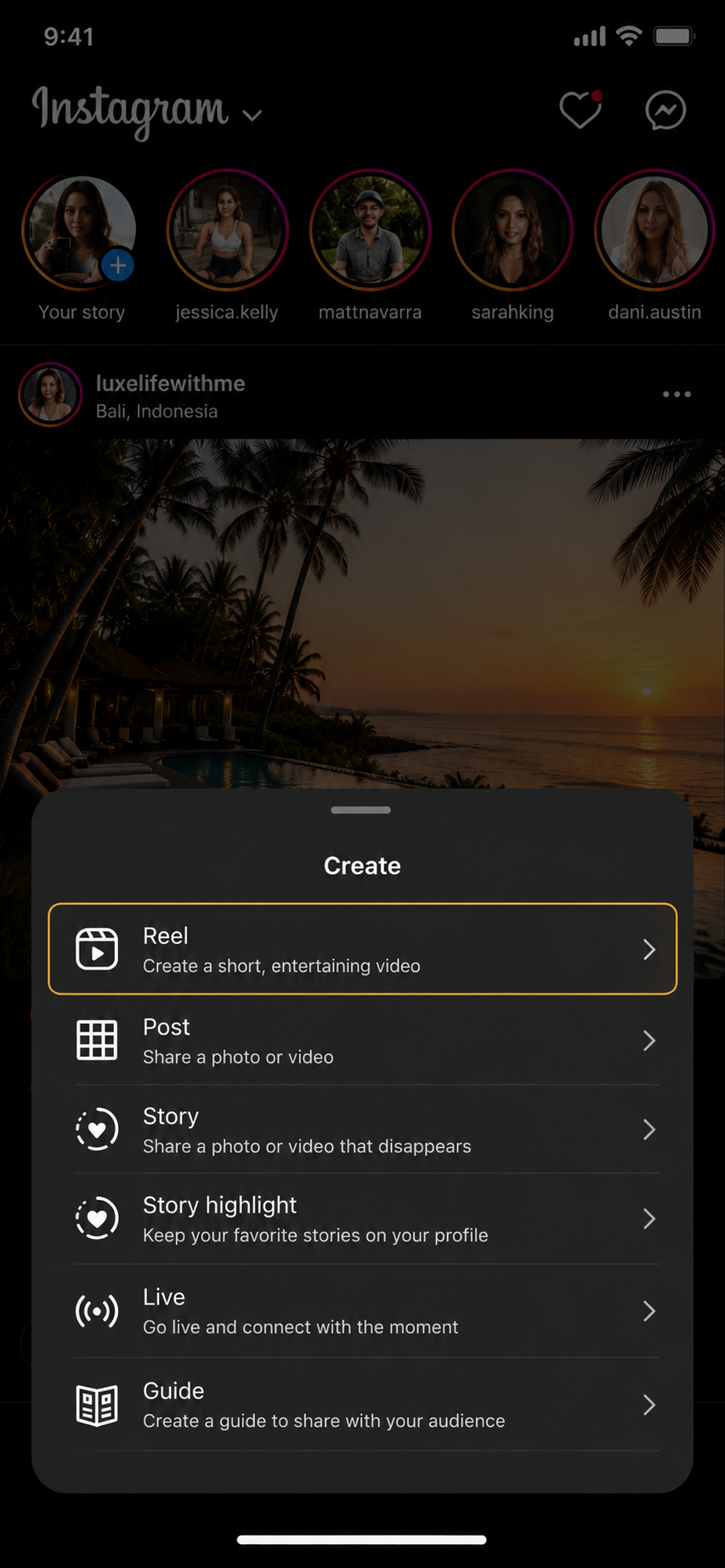
Select Reel
Choose Reel from the list of available content types.
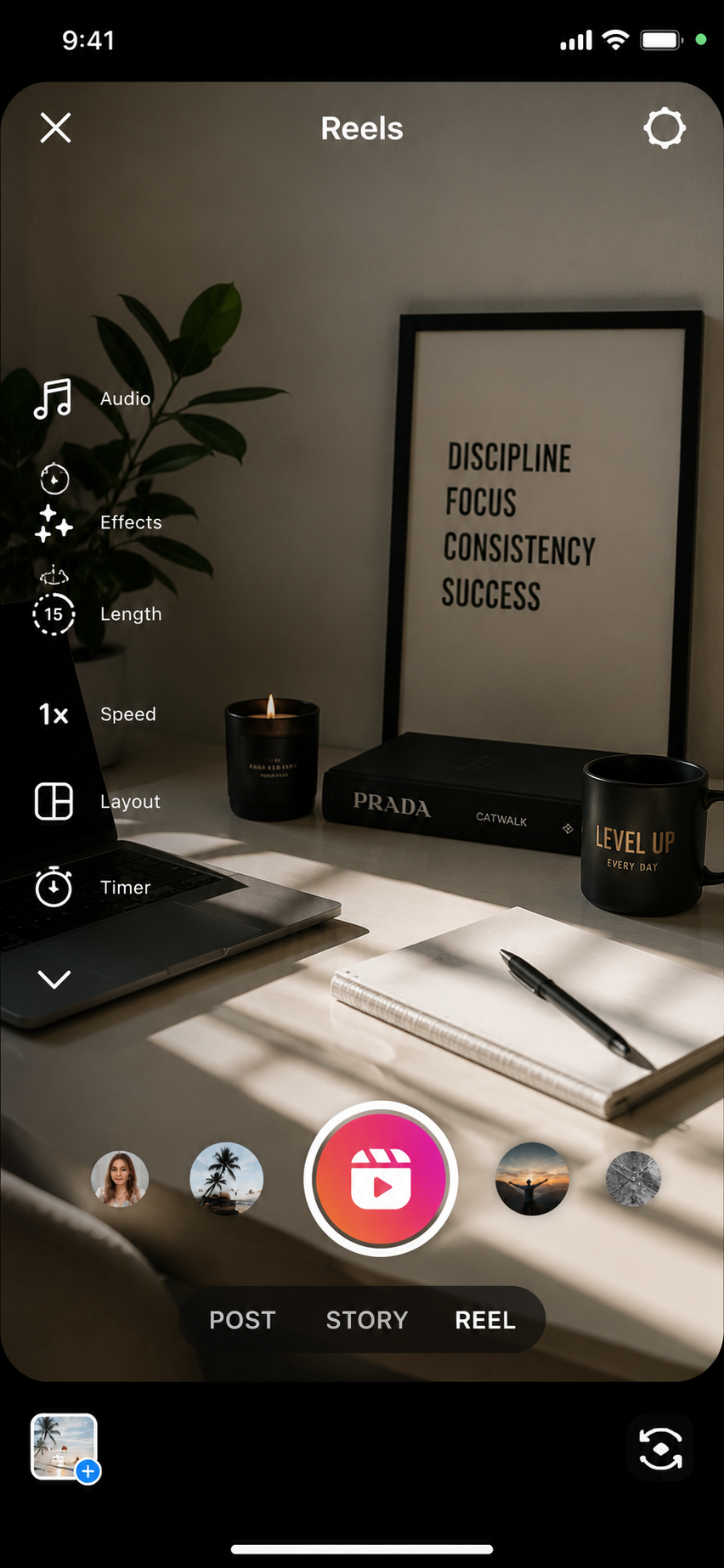
Record or Upload
Record inside Instagram or upload a clean vertical clip from your camera roll.
Add Text, Audio & Captions
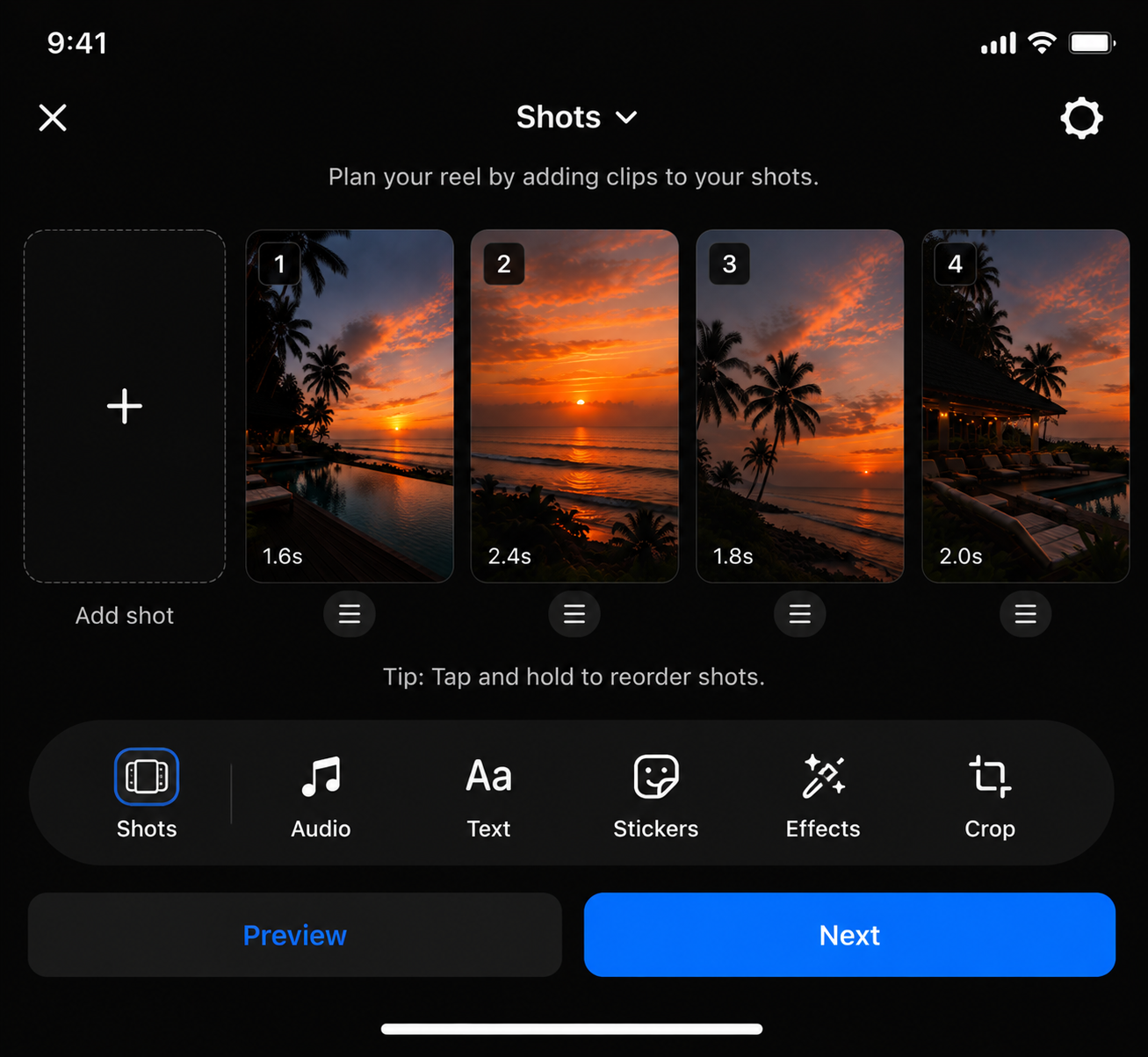
Add your hook, automatic captions, music and any simple visual edits.
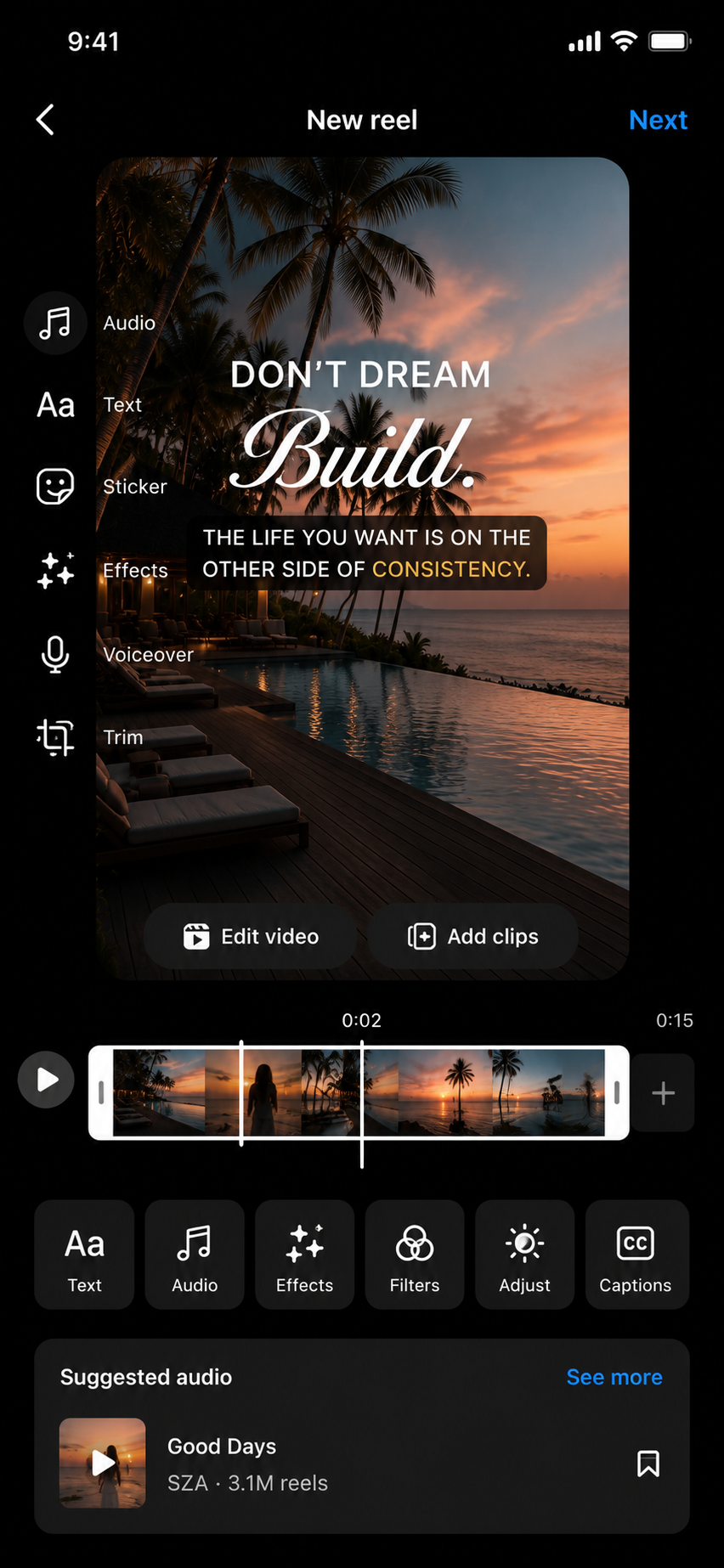
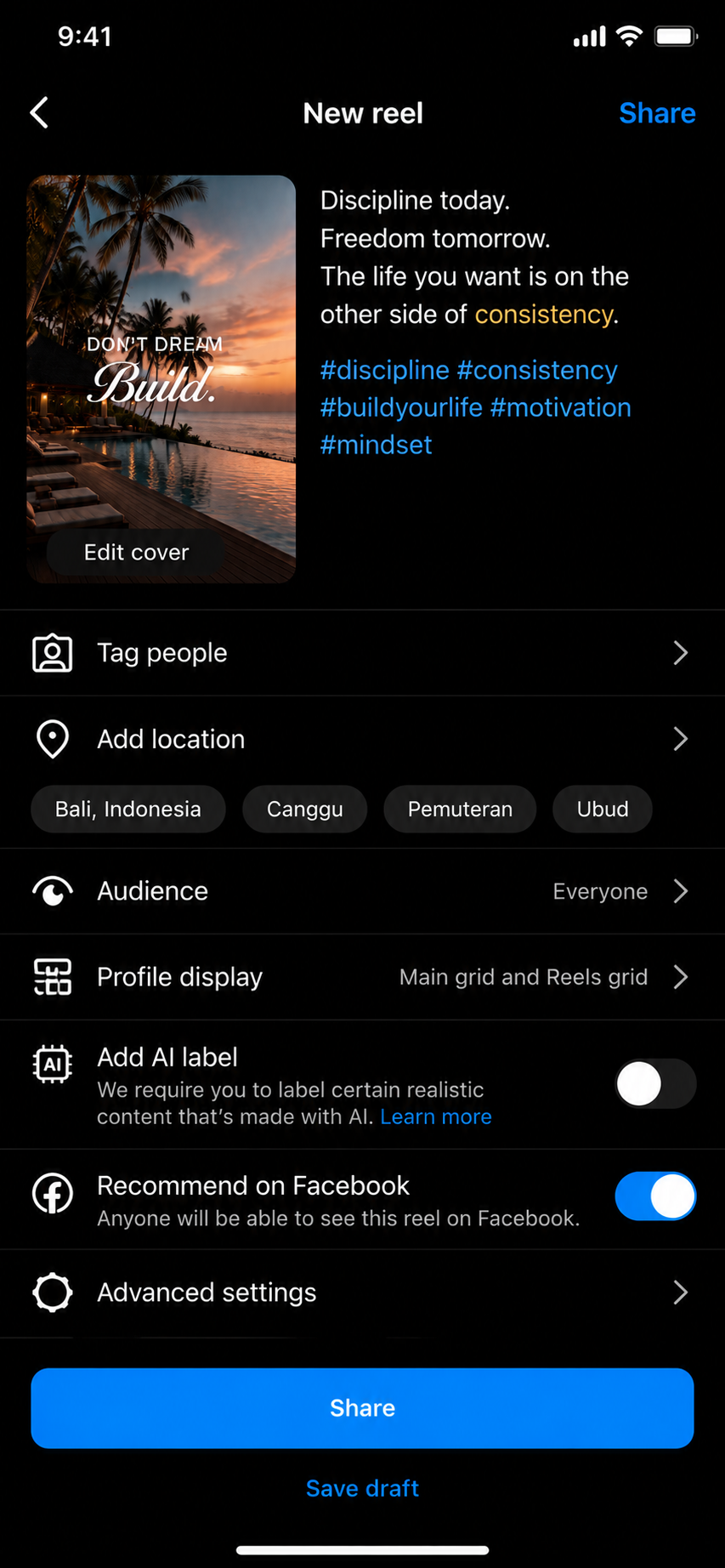
Write the Caption & Share
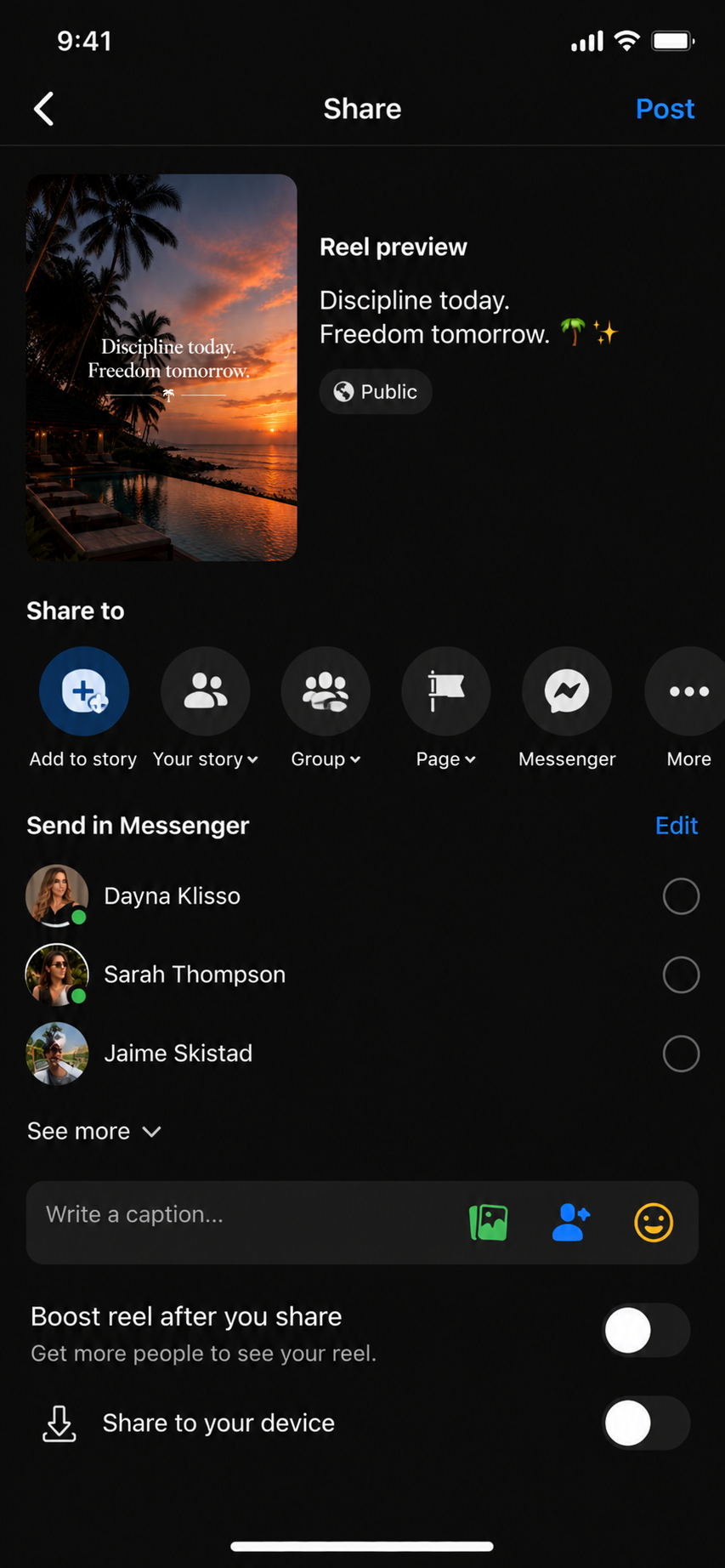
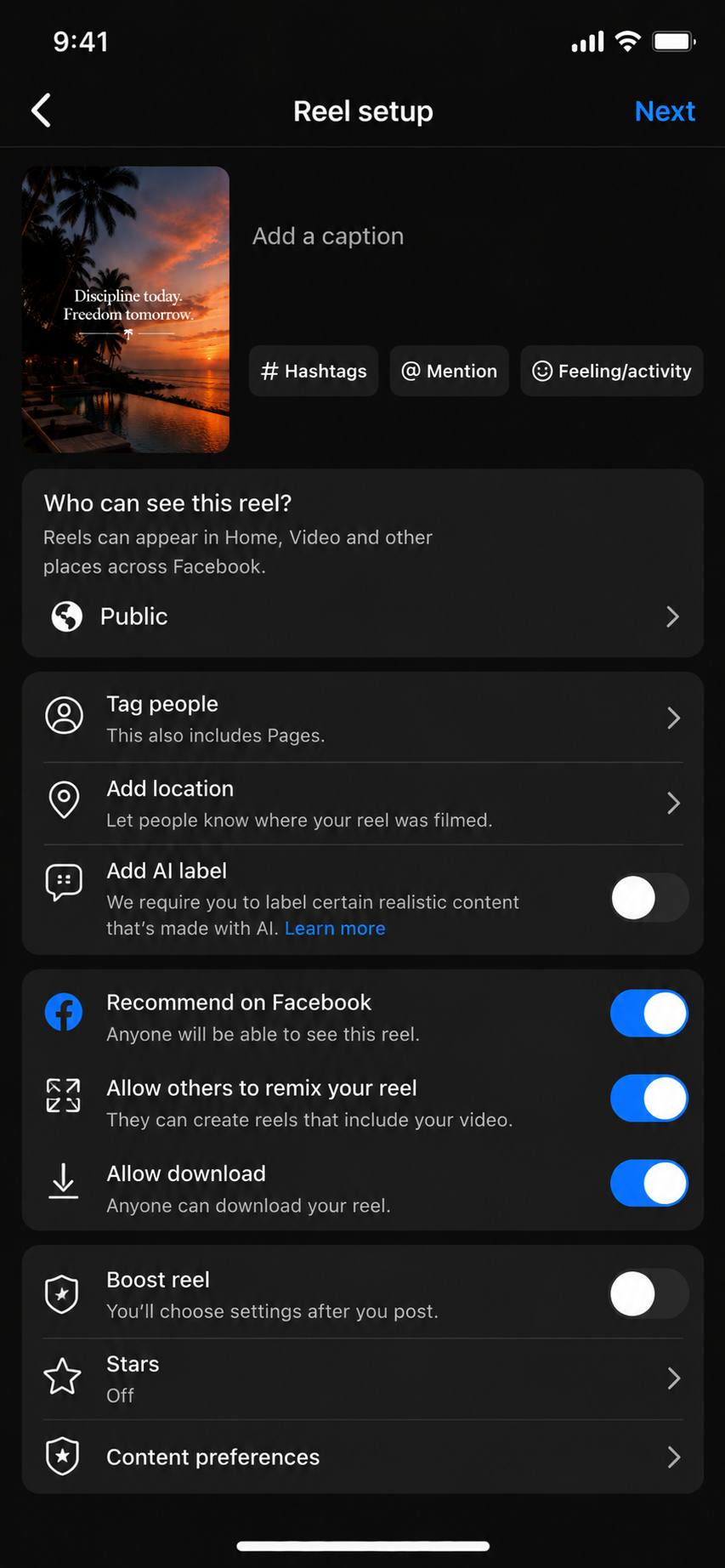
Choose the cover, write a clear caption, confirm your settings and publish.
Create a
TikTok.
Use the centered Create button, record or upload your clip, add captions and post with one clear topic.
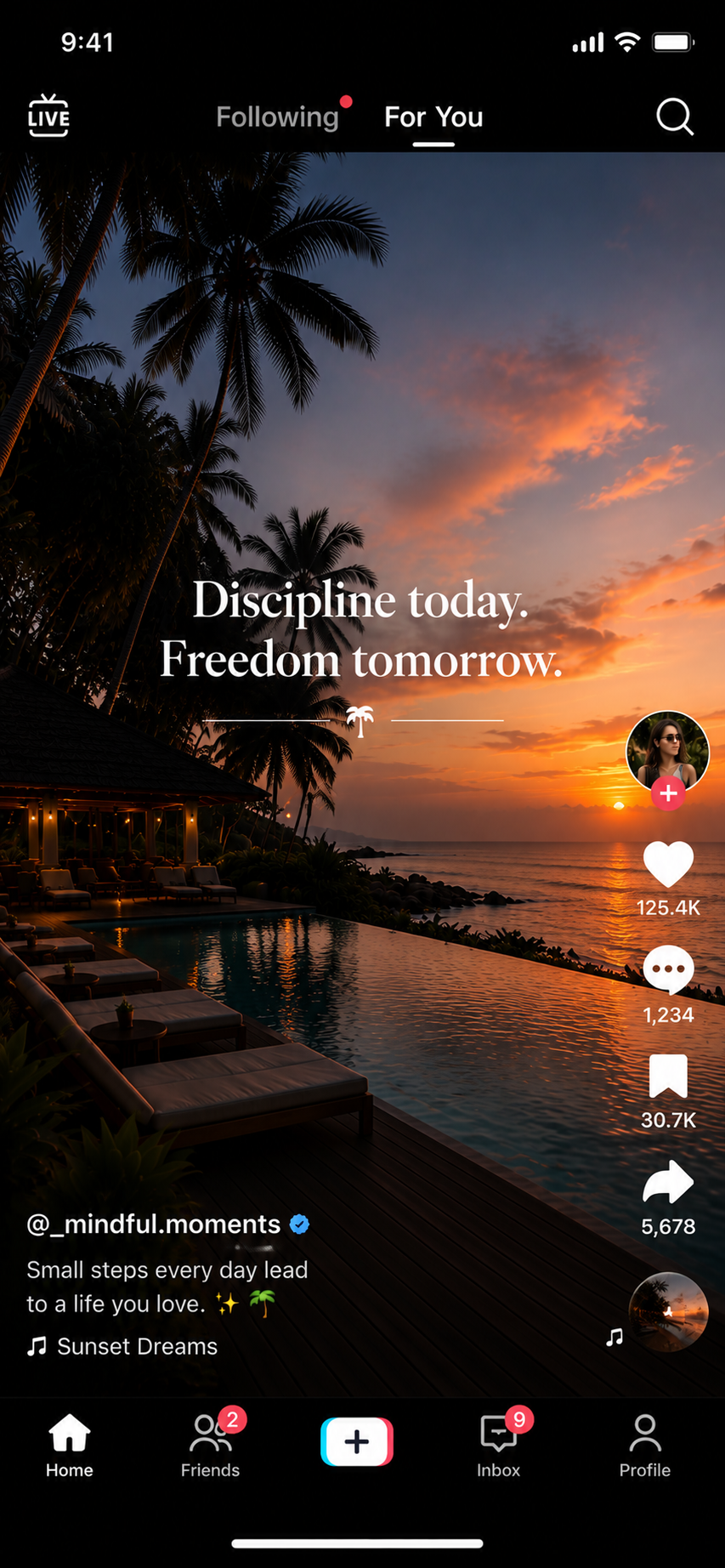
Open TikTok
Open the app and begin from the main For You feed.
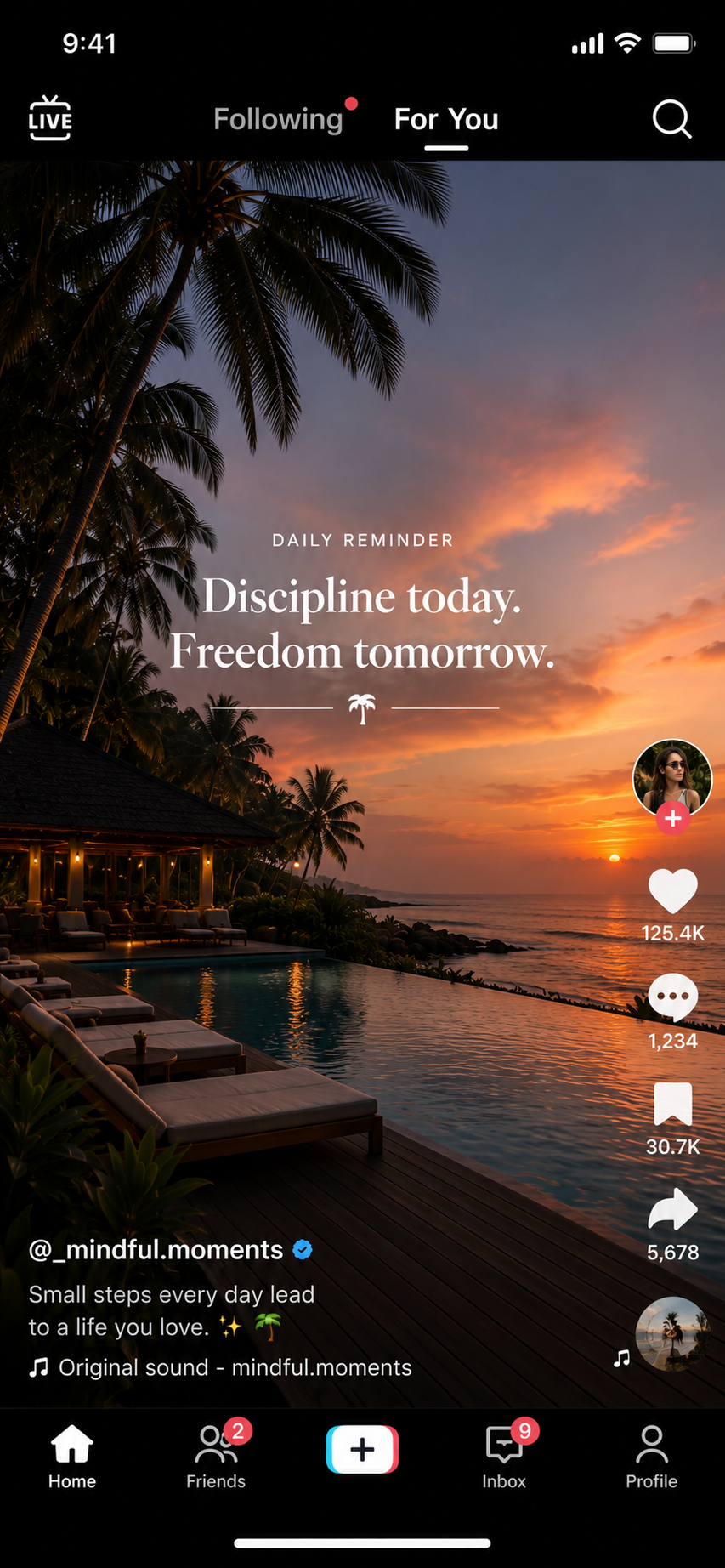
Tap the + Button
The Create button is centered at the bottom of the TikTok screen.
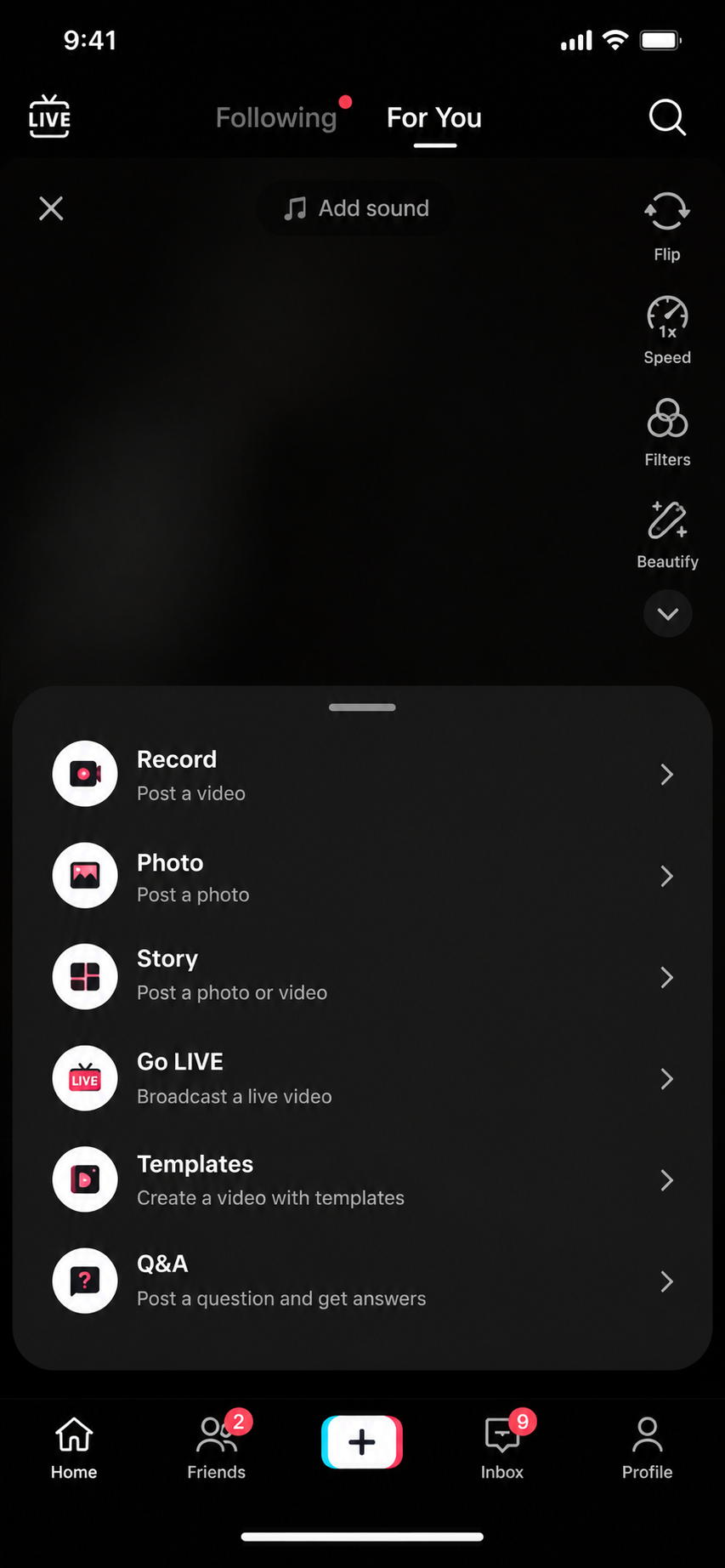
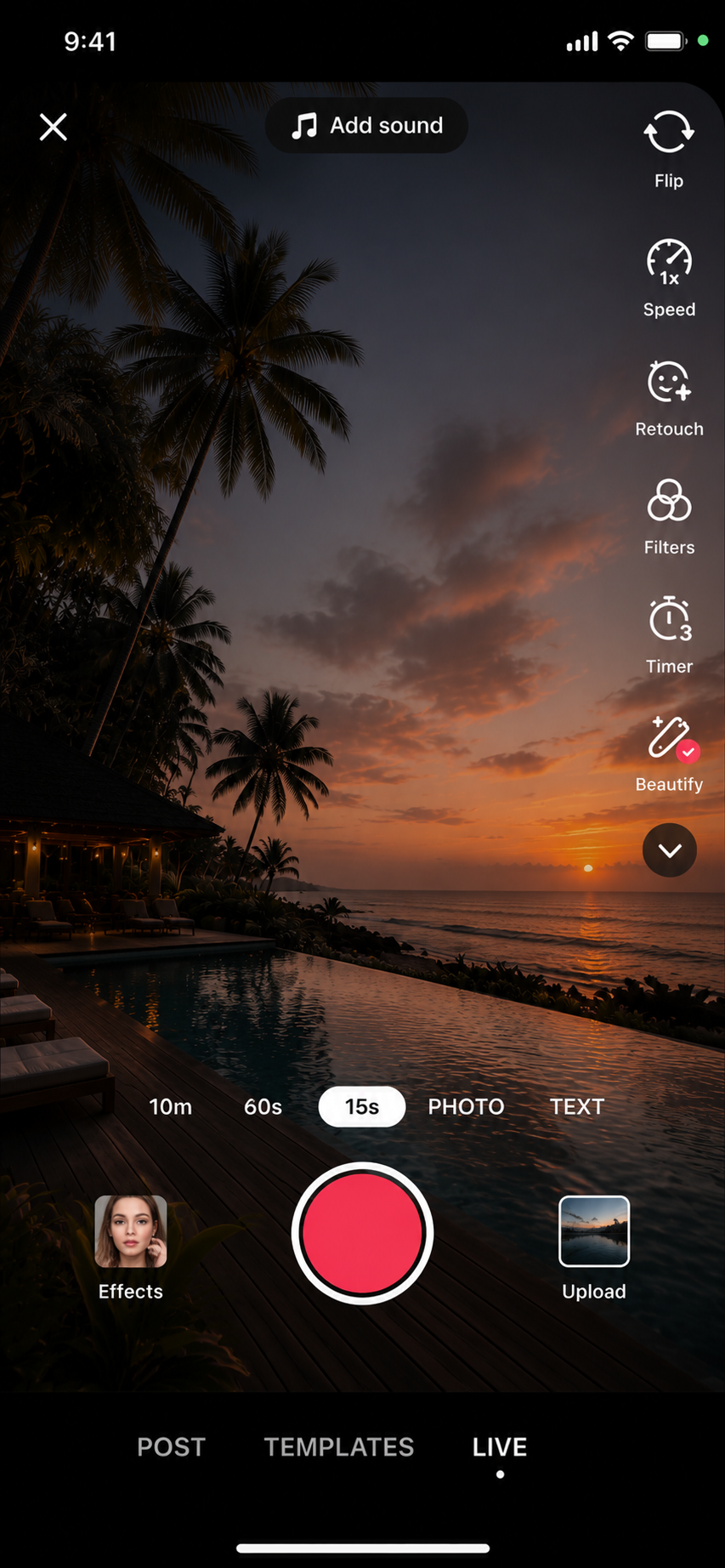
Record or Upload
Use the red record button or choose Upload to use a saved clip.
Edit the Video
Add text, trim clips, use simple effects and adjust the sound.
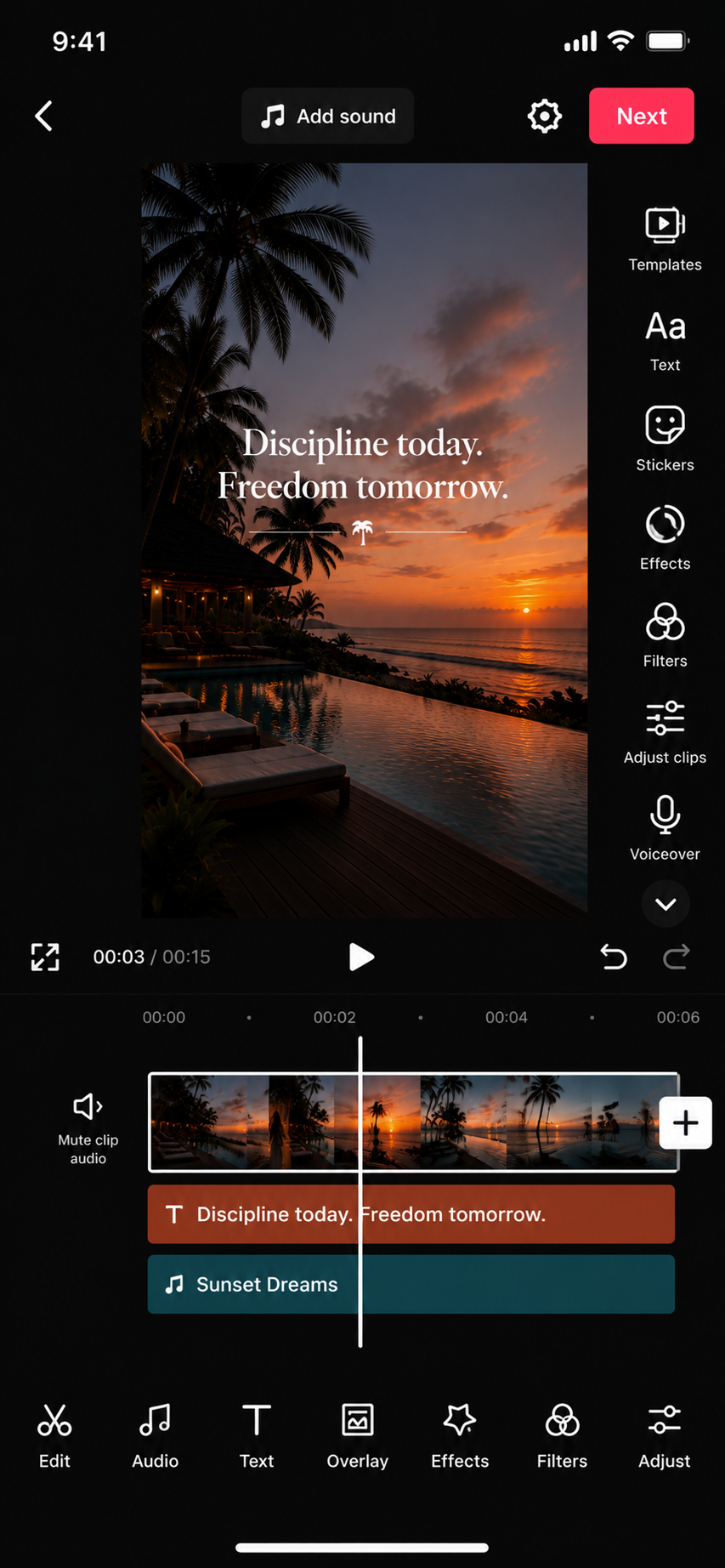
Add Captions
Generate automatic captions, correct errors and keep the text easy to read.
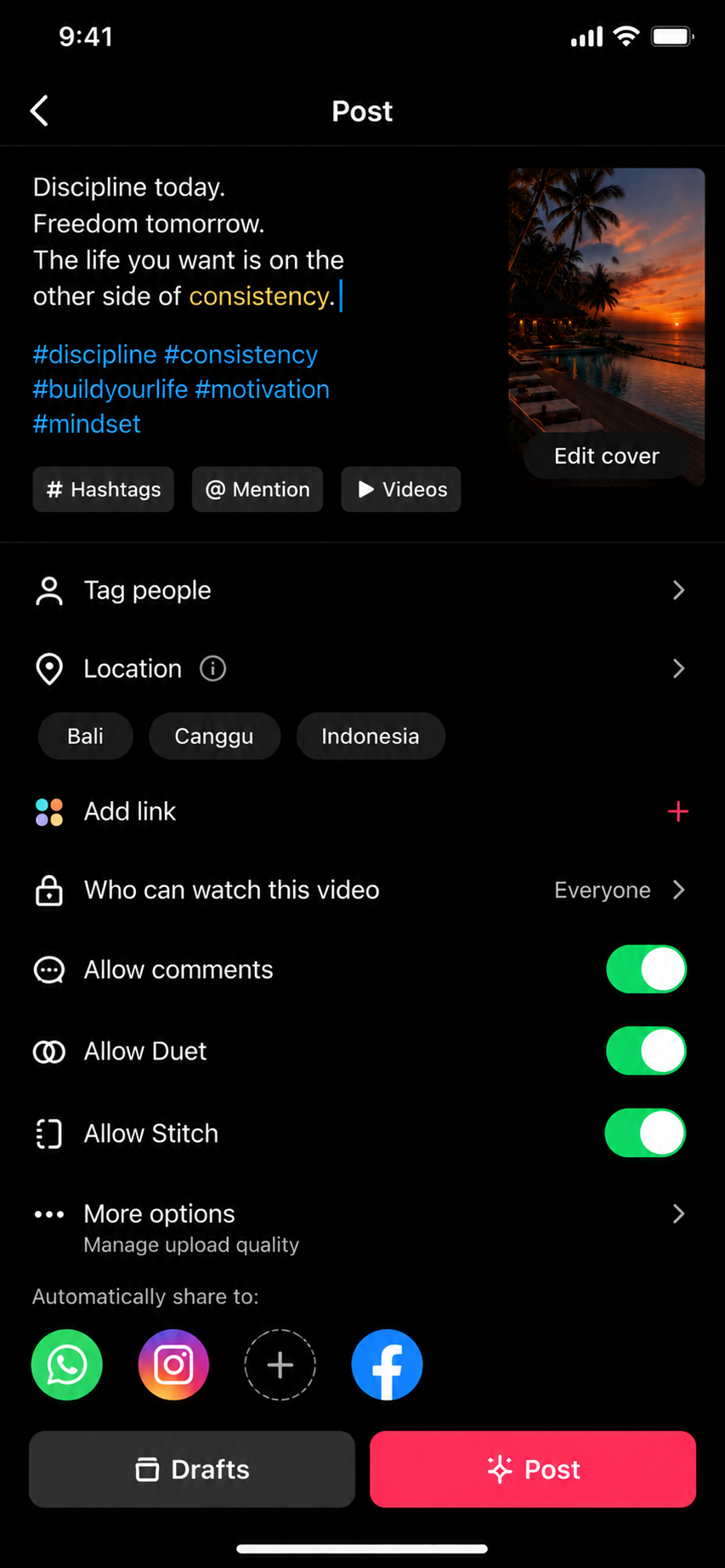
Write the Caption & Post
Use natural topic words, one CTA, review your settings and tap Post.
Create a
Facebook Reel.
Find the Reels or Create shortcut, upload a vertical video, edit, confirm the audience and share.
Open Facebook
Open the app and look for Create, Reels or the Menu shortcut.
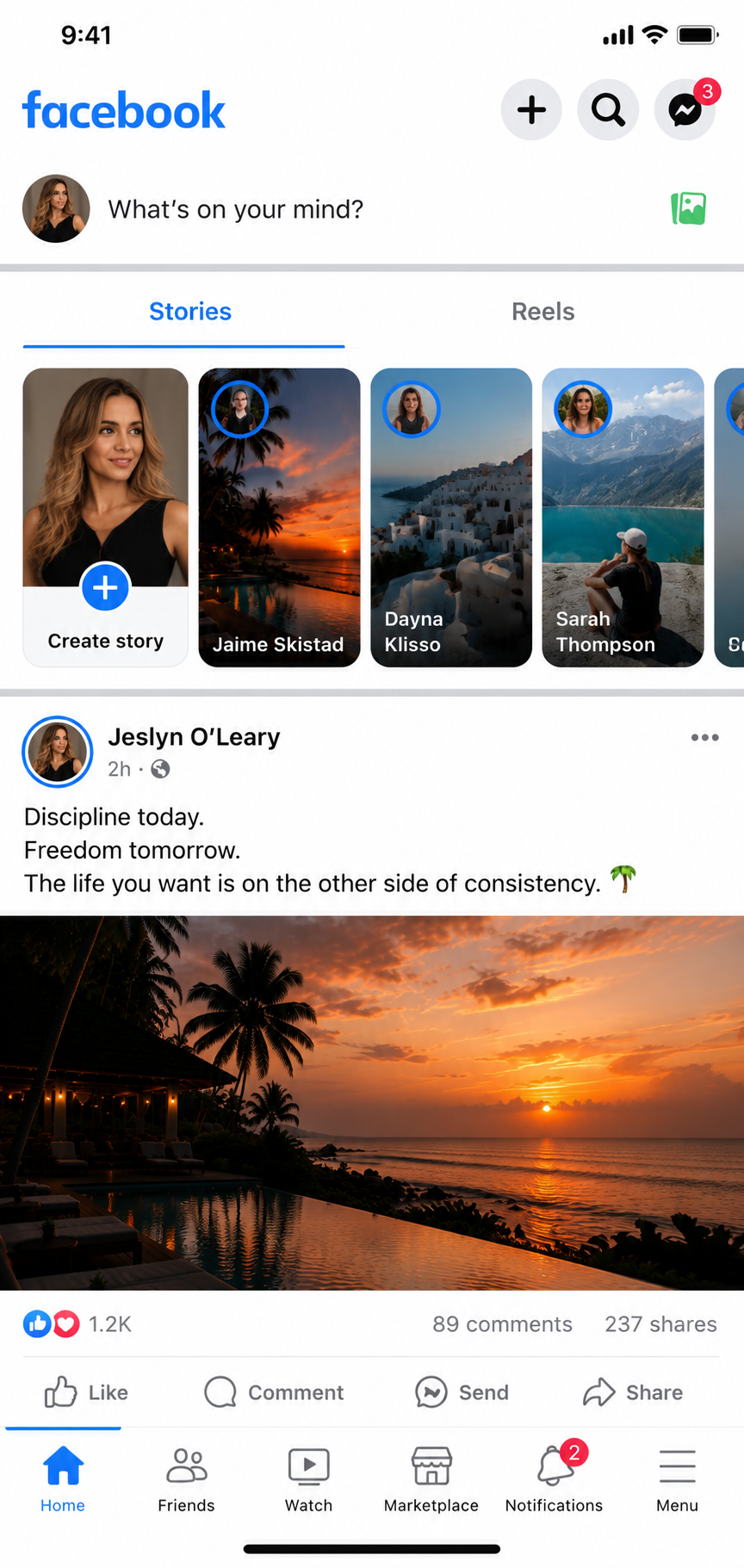
Open Reels
Select Reels, then choose Create Reel.
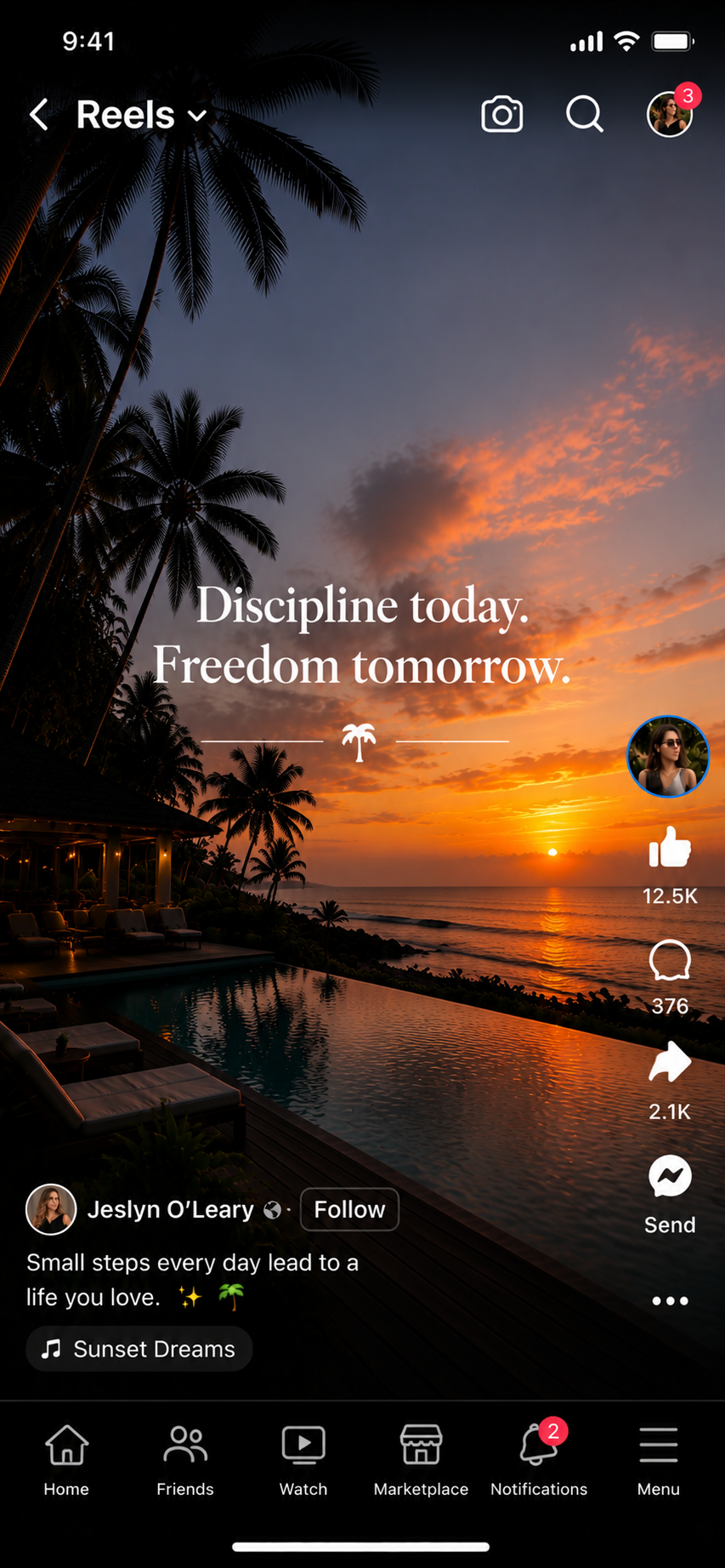
Record or Upload
Record inside Facebook or choose a clean vertical video from your phone.
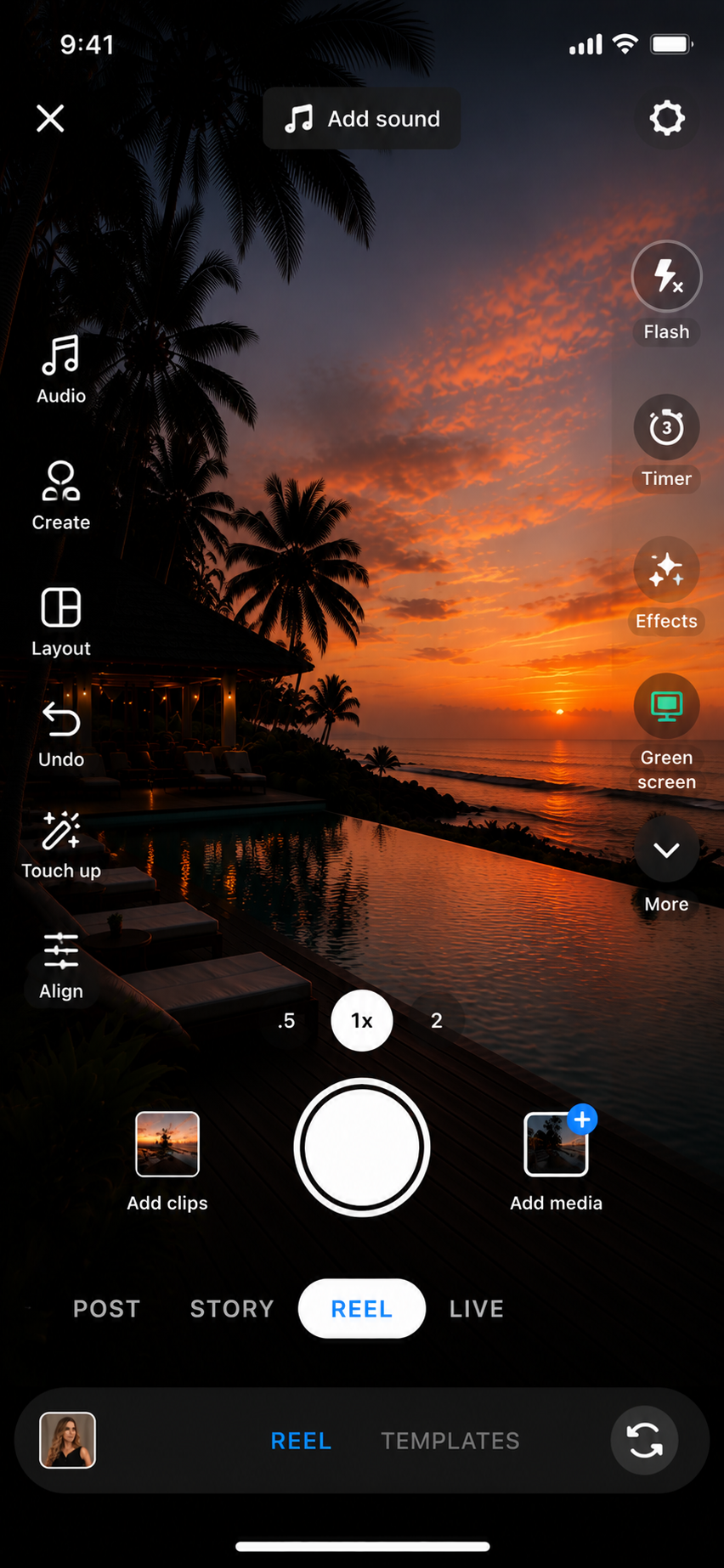
Edit the Reel
Add captions, text, music and any simple adjustments.
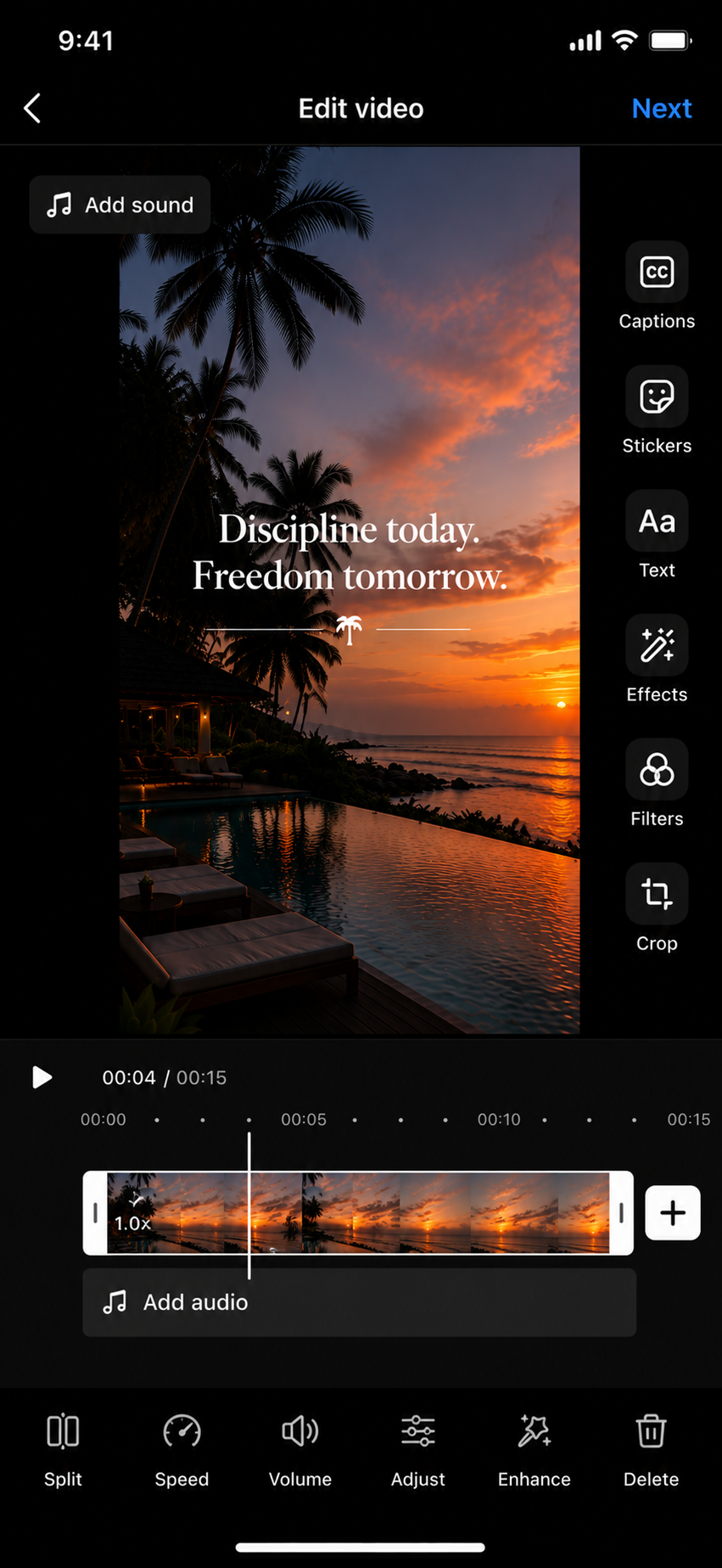
Add the Caption & Share
Confirm your audience, write the caption and tap Share Reel.
Start with what
you have.
Phone, tripod or stable surface, eye-level camera, clean background and front-facing light.
Beginner Creator Setup
Show exactly where the phone, creator, light and background should be positioned.
Know what
to film.
Rotate talking-head content with B-roll, product clips, overhead shots and movement.
Beginner Shot Types
Talking head, desk B-roll, overhead, walking, product close-up, POV and screen recording.
Give them a
reason to stop.
Use direct spoken hooks and matching on-screen text so viewers understand the topic immediately.
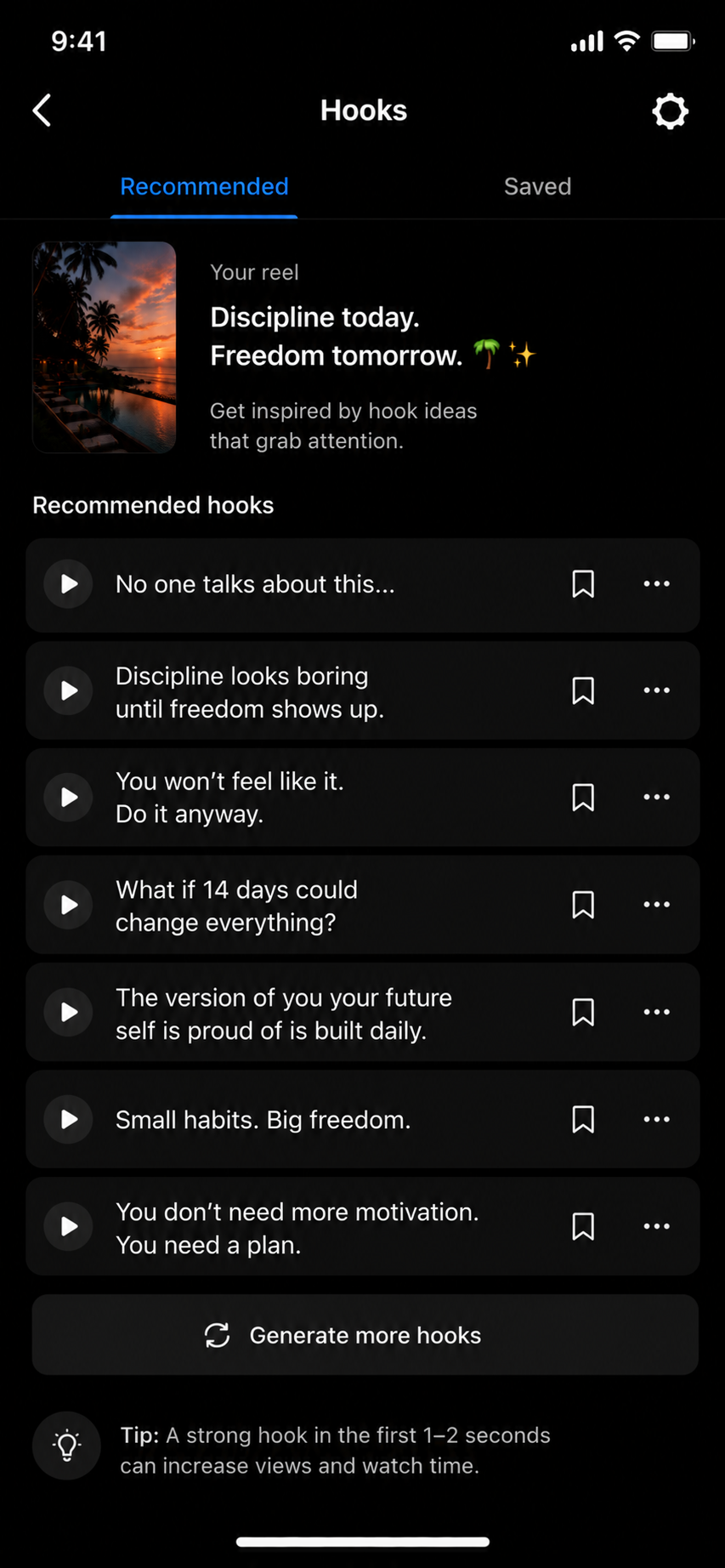
Hook Examples
Show several Reel and TikTok thumbnails using clear, specific opening lines.
Check it once.
Then publish.
Use a quick checklist so your cover, captions, audio, CTA and platform settings are ready.
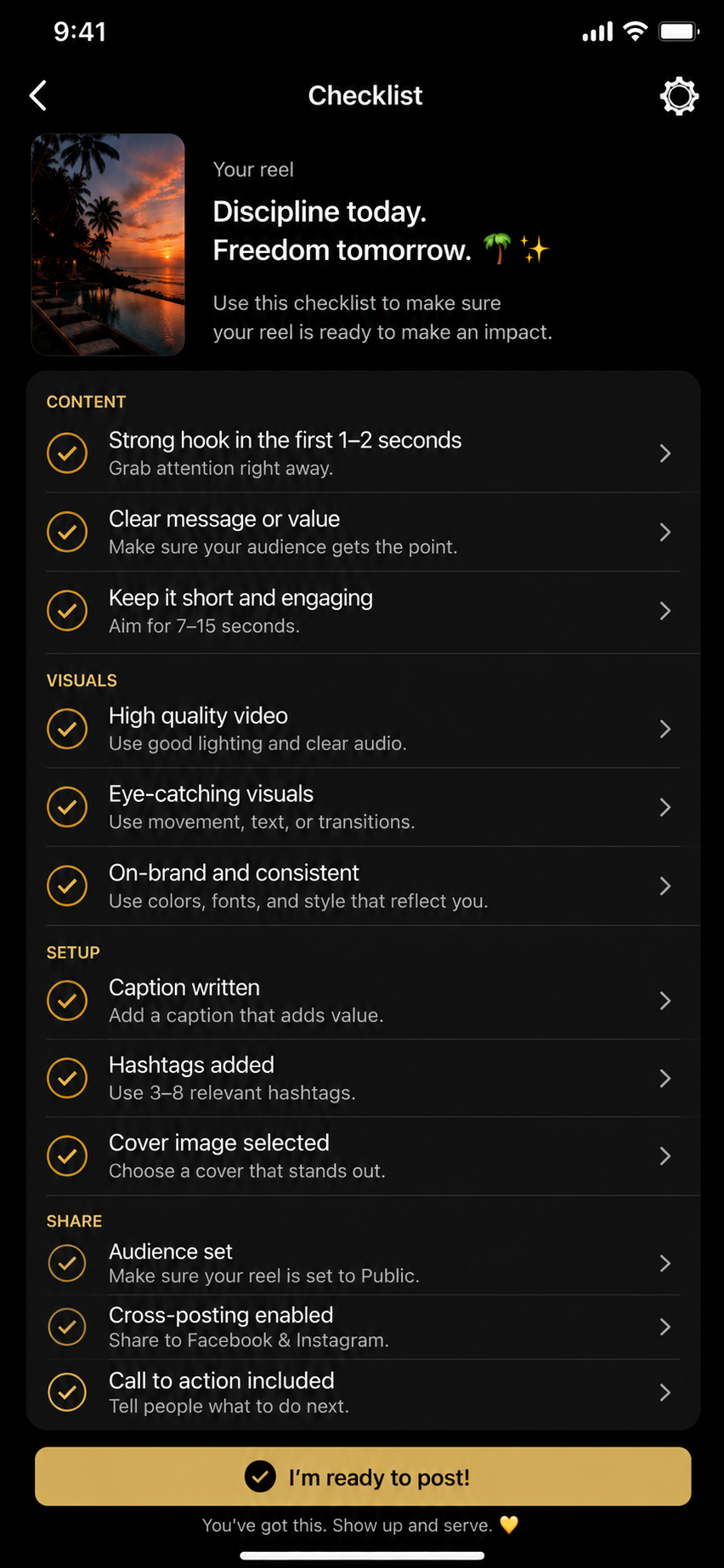
Posting Checklist
Cover, hook, captions, sound, CTA, audience settings, clean export and final review.
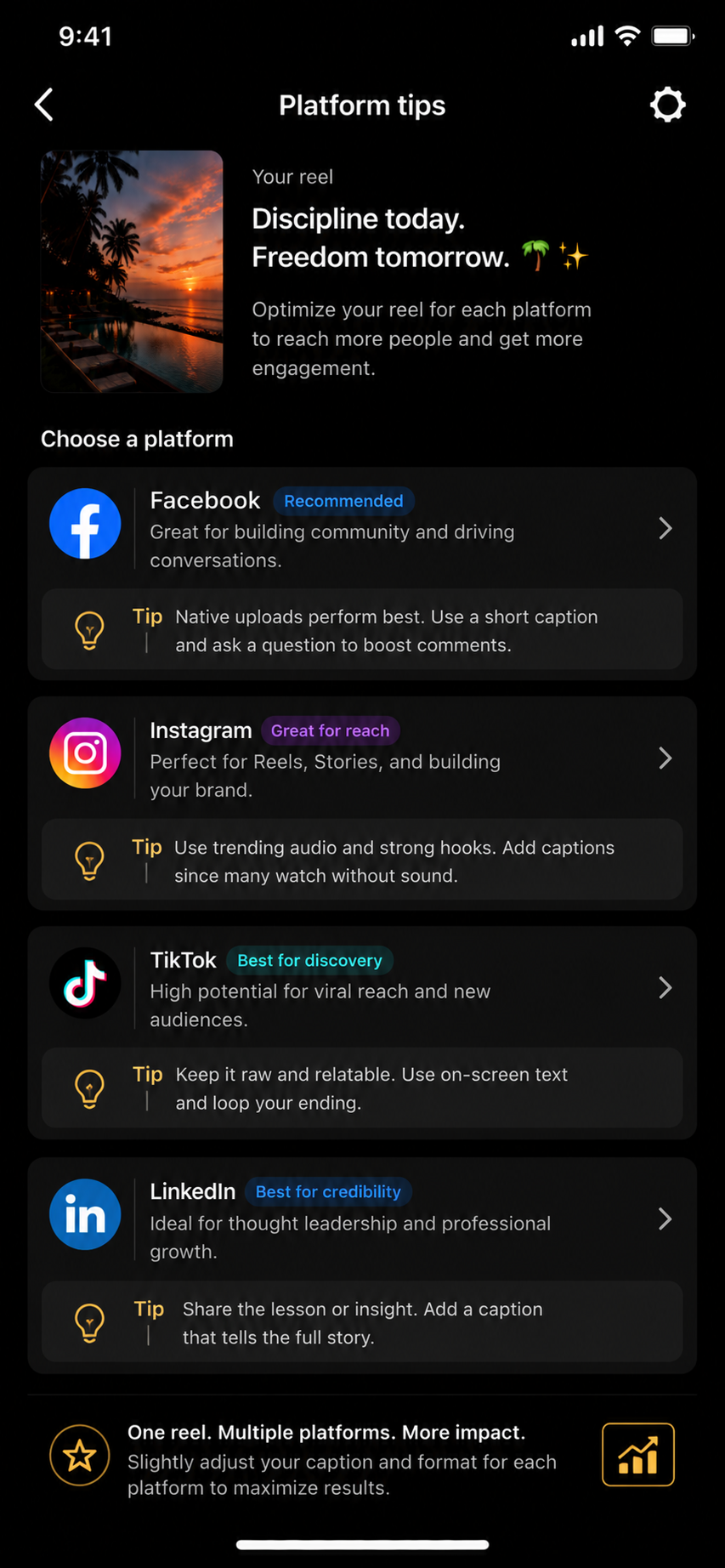
Platform Tips
Use one clean vertical video, then adjust the caption, cover and CTA for Instagram, TikTok and Facebook.
Use a clean cover, readable captions, Story sharing and a CTA that encourages saves, shares or DMs.
TikTok
Say the topic immediately, match spoken words with on-screen text and test multiple hooks.
Use direct captions, confirm the audience and respond thoughtfully to longer comments.
You know where
to tap.
Return whenever you need a visual reminder for creating, editing or publishing short-form content.